Windows Containers Made Easy with Portainer - Why IT Leaders Should Care
A lot of customers I talk to are what we’d call “Windows shops.” They’ve built their business on Windows Server, Active Directory, and .NET apps, and many run that stack on VMware infrastructure. I’ve worked in and with environments like that for years. And the reality is, they’re not alone - around 80% of enterprise IT fits that description, according to industry analysts. With so many in the same boat, it got me wondering: how hard or easy is it, really, to run Windows containers? And how do they behave in Portainer?
I decided to try the path of least resistance. For me, that meant starting with Docker on Windows rather than going straight to Kubernetes. It’s simpler to set up, it aligns with what many Windows teams are familiar with, and it’s a good stepping stone toward more advanced orchestration later. Since my lab (built during my First 30 Days at Portainer series) already had the networking and infrastructure in place, it was the perfect environment to run this experiment.
Are you a Windows user thinking about running containers?
Windows containers offer many of the same benefits as Linux containers like portability, isolation, and efficiency, but the starting point is different. Now is a great time for Windows users to start taking advantage of containers, but it isn’t always clear how to begin.
Here’s a quick overview of the Windows container landscape and a few things to know before you start:
- Windows vs. Linux containers: Containers share the host OS kernel, so Windows containers run on Windows hosts and Linux containers run on Linux hosts. You can’t mix them directly.
- Virtual machines vs. containers: A VM runs a full OS inside a hypervisor; a container uses the host OS kernel, with namespaces and isolation to make it feel like its own environment.
- Isolation options: Windows containers can run in process isolation (share the host kernel) or Hyper‑V isolation (separate kernel in a lightweight VM). Hyper‑V isolation is more flexible but adds overhead.
- Linux on Windows: You can run Linux containers on Windows, but it’s mostly a development convenience and not really recommended for production.
That was my baseline understanding going in. The goal was to see how Windows containers actually perform in a nested virtualization lab, get one up and running, and manage it with Portainer.
Starting Point: My Lab Environment
If you’ve read my First 30 Days at Portainer blog series, you know I run my demos on a Proxmox‑based home lab. It’s a great way to model what a lot of enterprise customers are doing.
For this test, I spun up a fresh Windows Server 2025 VM on Proxmox.
I gave it:
- 4 vCPU, 16GB RAM
- VMware PVSCSI as the disk controller (works out‑of‑the‑box for Windows installs)
- CPU type set to “host” so Hyper‑V can run inside the VM. (This is critical for nested virtualization as without it, Hyper‑V won’t install and Windows containers won’t start.)
Enabling Containers and Hyper‑V
Once Windows Server was up and running, I opened an elevated PowerShell prompt and ran:
Install-WindowsFeature -Name Containers
Restart-Computer
Install-WindowsFeature -Name Hyper-V -IncludeManagementTools
Restart-Computer
Hyper‑V installed cleanly after switching the VM processor type to “host” in Proxmox. Without that change, it fails the prerequisite check.
Installing Docker
Microsoft now recommends using the Mirantis Container Runtime for Windows Server. It installs Docker plus the required container runtime bits:
Invoke-WebRequest -UseBasicParsing https://get.mirantis.com/install.ps1 -OutFile install.ps1.\install.ps1
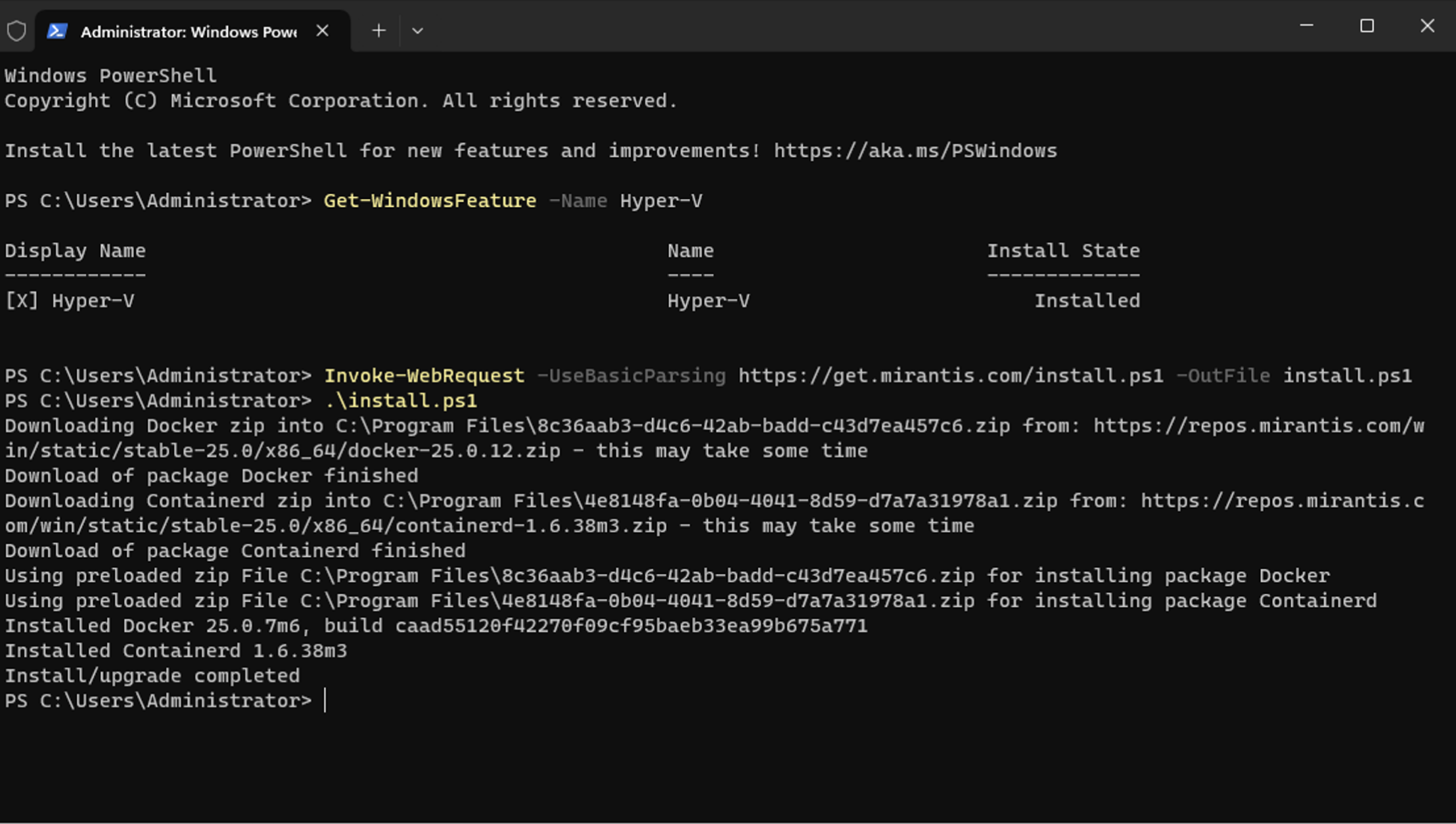
After the install, I ran:
docker version
to confirm Docker was available and running.
.png)
Connecting My Windows Node to Portainer
Before running any test containers, I wanted to manage this Windows node directly in Portainer.Installing the Portainer agent was straightforward. In Portainer, Environment-related → Environments, you just click “+ Add Environment” → Docker Standalone → Start Wizard, and Portainer gives you the command to run in Windows:
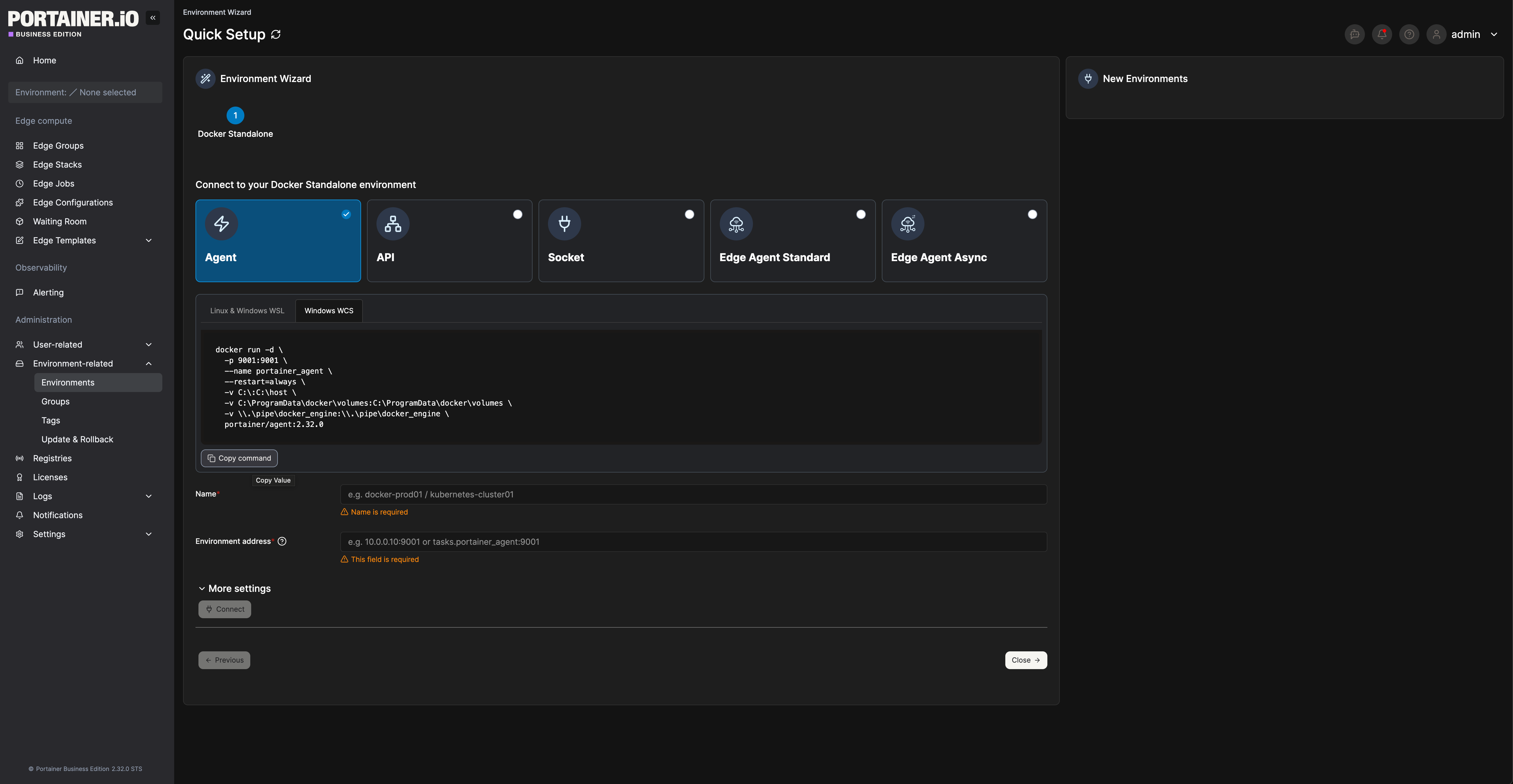
Note that if running this in PowerShell like me, the slashes don’t work like they do in linux and it’s better to just run it all as one long command line like this:
docker run -d -p 9001:9001 --name portainer_agent --restart=always
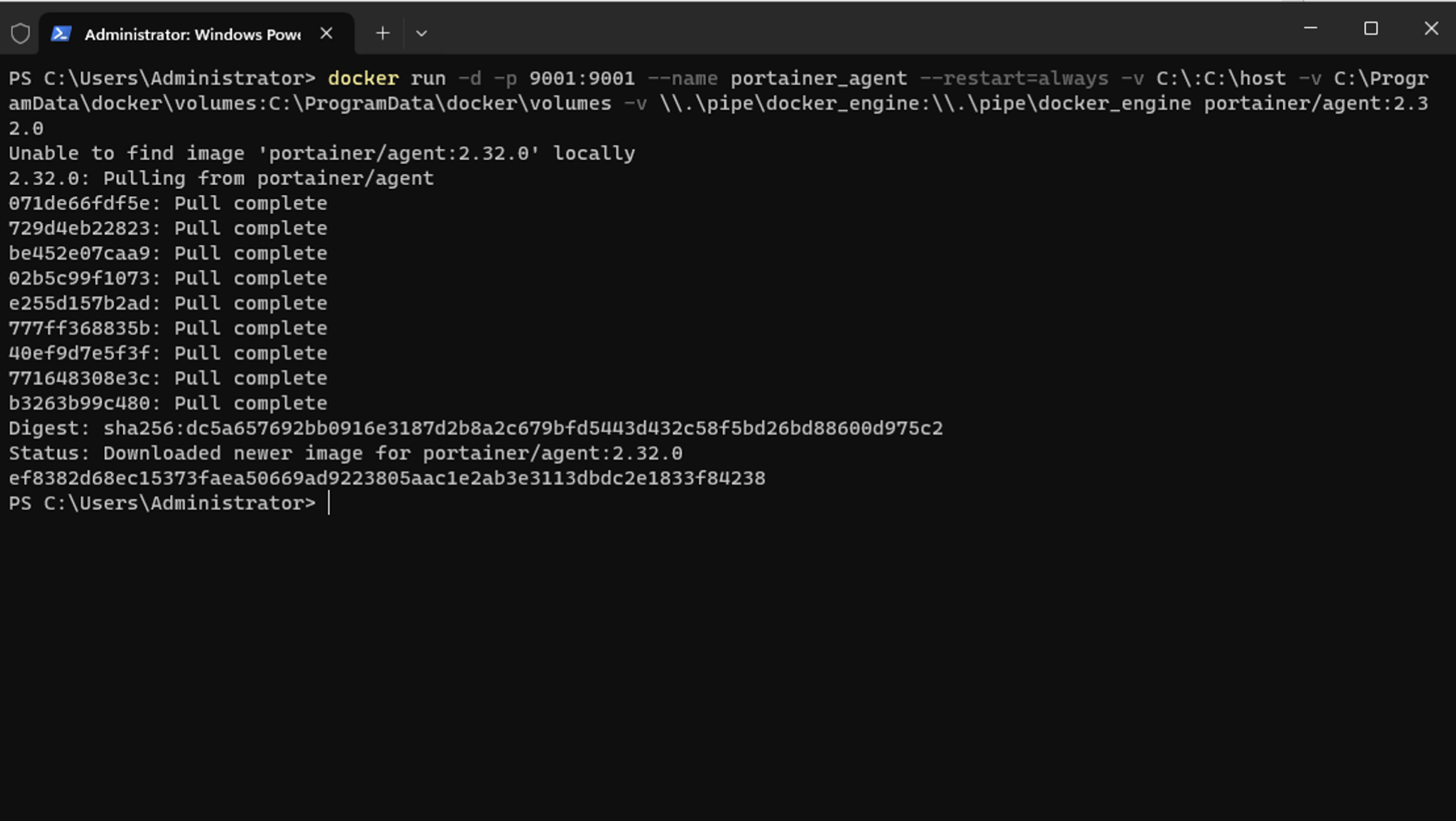
Once the agent was installed, I went back to Portainer and proceeded to enter a Name, Host IP (or DNS name) and Port → Clicked “Connect” and the environment was added to Portainer.
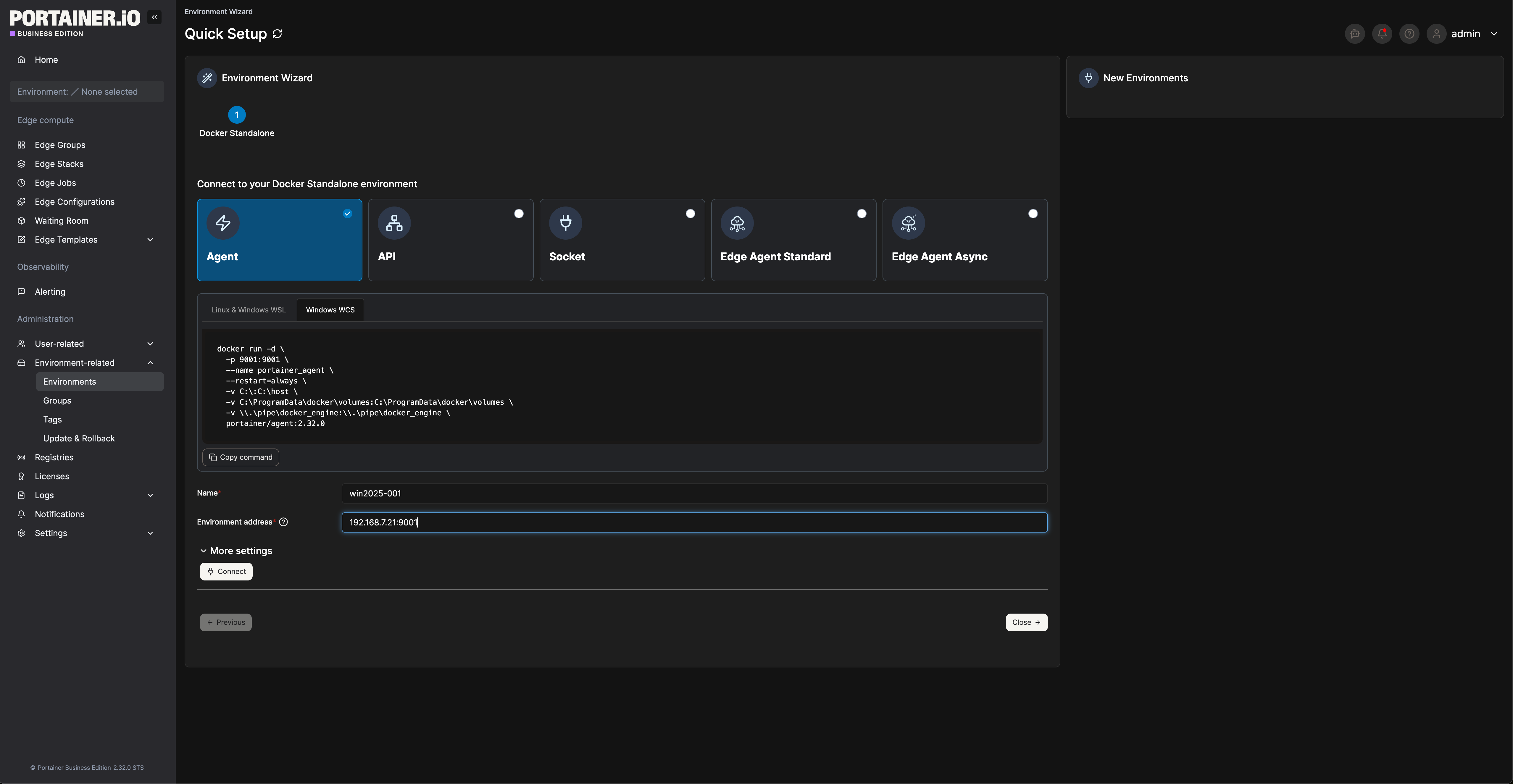
Once connected, I could manage the node entirely from the Portainer UI, including deploying containers without touching the Windows CLI.
Where Things Got Tricky
My first instinct was to grab a Windows Server 2025 container image (mcr.microsoft.com/windows/servercore:ltsc2025):
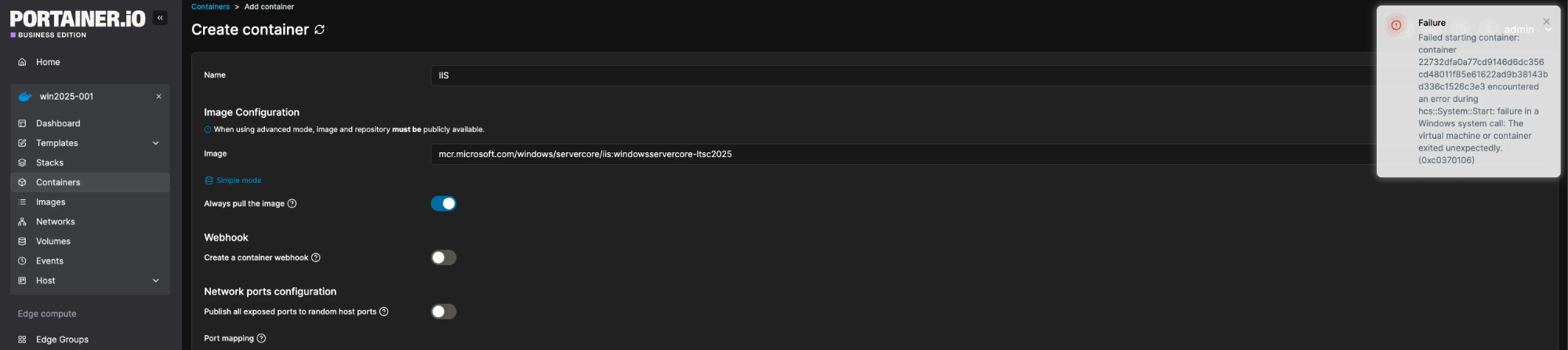
As you can see above that failed with:
(0xc0370106) The virtual machine or container exited unexpectedly.
I tried both Hyper‑V isolation and process isolation. Both failed. It turns out that this is a common issue right now, 2025 images are brand new and not “all” are fully supported in all nested virtualization scenarios.
The Fix: Use Windows Server 2022 Images
Switching to Windows Server 2022 containers solved the problem immediately.
From Portainer’s UI, I could deploy (mcr.microsoft.com/windows/servercore:ltsc2022) without an issue. To test something useful, I used Portainer’s container creation workflow to deploy the official IIS image for Windows Server 2022. I mapped 8080 → 80 so I could browse to the Windows Node from my laptop on 8080 to access IIS in the container:
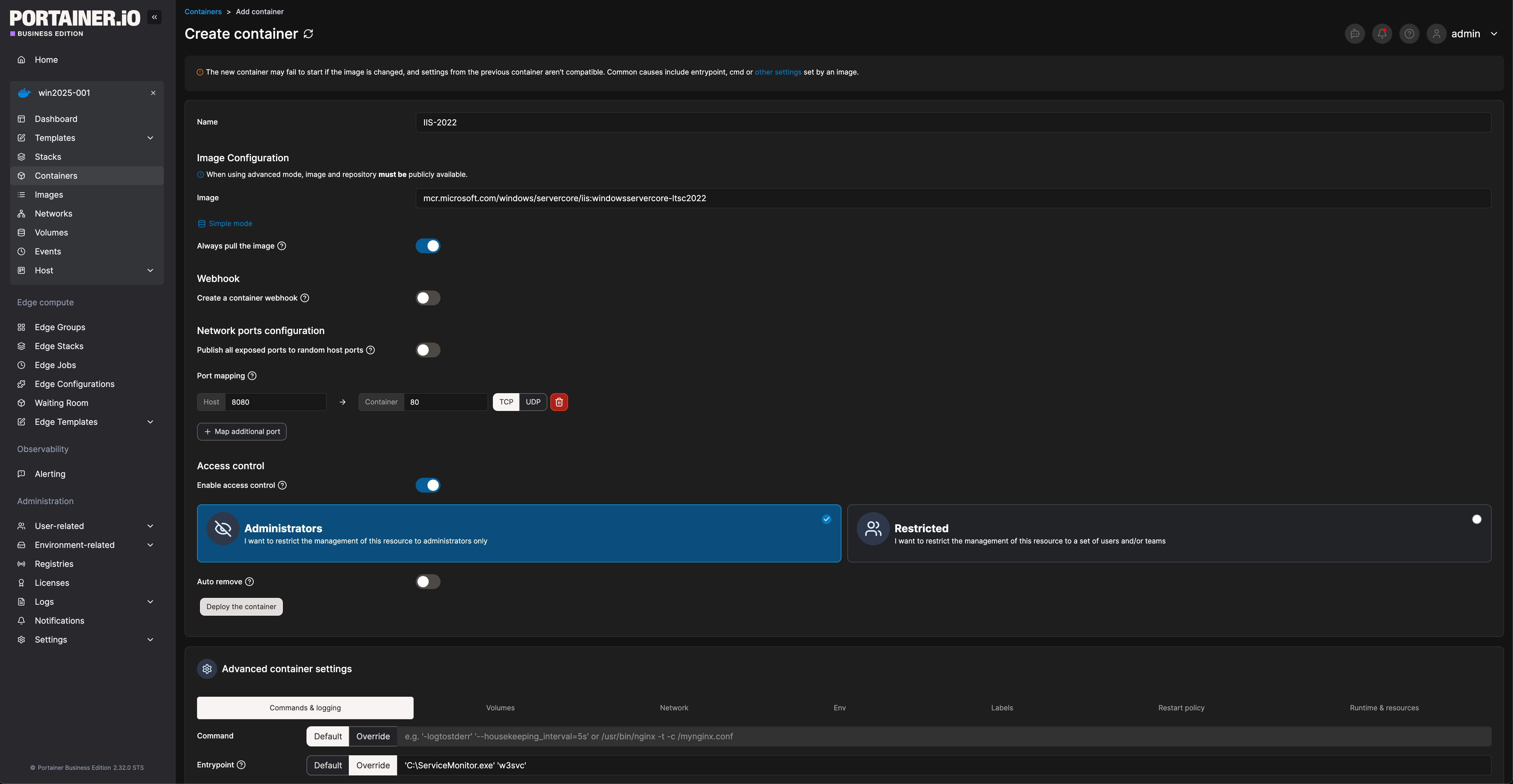
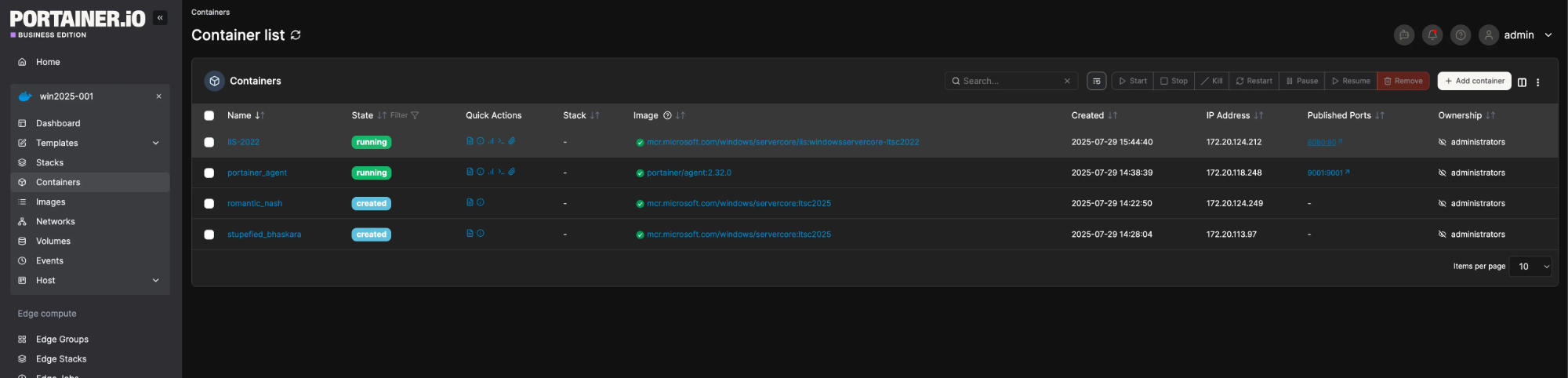
Once deployed I could browse to:
http://192.168.7.21:8080
and see the familiar IIS welcome page. All done without leaving Portainer.
.png)
Lessons Learned
- Not all Windows Server 2025 container images work yet in my nested virtualization setup. So I will have to stick to LTSC2022 for now.
- CPU type = host in Proxmox is essential for enabling Hyper‑V inside the VM.
- Process isolation works reliably in nested setups.
- VMware PVSCSI is the easiest disk controller choice for Windows VMs on Proxmox.
- Connecting the node to Portainer first means you can skip CLI entirely for deployments.
Why This Matters
Most Windows‑centric IT teams have never seen their IIS apps run in a container.This is a simple, repeatable way to get there whether you are running on VMware, Hyper‑V, bare metal, or any other virtualization platform:
- Create a Windows Server VM on the platform you use today.
- Enable Containers + Hyper‑V roles.
- Install the Mirantis/Docker runtime.
- Connect the server to Portainer.
- Deploy a Windows Server 2022 IIS container.
- Map a port and browse to it and see your app running in a container.
This isn’t just a lab exercise. It’s a low‑risk, high‑value way to get hands‑on with containerization in an environment that’s familiar to you.
Once you see how easy it is to manage Windows containers from Portainer, it opens the door to modernizing more of your Windows workloads, without having to jump straight into Kubernetes or re‑architect everything on day one.
One platform, not twelve tools.
Govern Kubernetes across your whole fleet from a single control plane. Get 3 nodes free.
Get 3 nodes freeTalk to technical sales